> ## Documentation Index
> Fetch the complete documentation index at: https://social-b97141fb-feat-user-history-moderation-detail.mintlify.site/llms.txt
> Use this file to discover all available pages before exploring further.
# Livestream
> Live video broadcasting, viewing, and stream management components
**UIKit Component**: Livestream components are built on top of the social.plus
SDK, providing ready-to-use live video broadcasting and viewing UI with full
data management handled automatically.
.png?fit=max&auto=format&n=EuQgtDswnsuEu3tu&q=85&s=755ce506c7459471c8b9973405b9dd48 "Livestream(4)") ## Feature Overview
The **Livestream** feature in social.plus UIKit v4 empowers users to broadcast and engage with live video content seamlessly. It provides a suite of components designed to facilitate the creation, viewing, and management of live streams within your application, offering comprehensive tools for both content creators and viewers.
### Key Features
**Live stream setup and broadcasting**
* Target audience selection (community or timeline)
* Stream title, description, and thumbnail setup
* Real-time broadcasting controls
* Camera switching and stream management
* Start from a Bluetooth remote or hardware volume key (iOS & Android)
**Multi-broadcaster collaboration**\
**(community only)**
* Invite co-hosts to join your stream
* Co-host management and controls
* Real-time multi-broadcaster stage
* Audio/video controls for each broadcaster
* AI-powered content moderation
**Live and recorded stream playback**
* Real-time live stream viewing
* Recorded stream playback for ended streams
* Automatic thumbnail display from backend
* Interactive viewer interface
* Stream status and engagement features
* Live Chat (community only)
* Picture-in-Picture on leaving the player (iOS & Android)
* Pinned message in live chat (community only)
**Broadcast control and administration**
* Stream termination handling
* Moderation and safety controls
* Stream status management
* Co-host permission management
**Flexible content distribution**
* Community-specific broadcasting
* Personal timeline streaming
* Audience selection workflows
**Multi-host broadcasting**
* Invite co-hosts to join the stream
* Real-time co-host participant streaming
* Co-host permission controls
* Collaborative stream management
**Real-time audience visibility**
* Real-time viewer count display
* Who's watching list to see active viewers
* Live audience engagement tracking
* Viewer presence monitoring
**Automatic watch time tracking**
* Watch minutes collection for viewers
* Pause/resume aware tracking
* No additional implementation required
**Tap-to-reveal player controls**
* Tap-to-reveal controls overlay on mobile
* Pause a live stream and resume at the live edge
* Chat keeps updating while video is paused
* 10-second skip on video posts and recorded livestreams
### Livestream Analytics
**Zero Implementation Required**: Livestream analytics is automatically built
into UIKit's livestream viewing components. When users watch live or recorded
streams through the Room Player Page, watch minutes are automatically tracked
and synced to the backend—no additional code needed.
UIKit automatically handles all analytics tracking including:
* **Watch Session Creation**: Sessions are created when viewers enter the room player page
* **Accurate Duration Tracking**: Only counts actual watching time (paused/buffering time is excluded)
* **Role Transition Handling**: Automatically stops tracking when a viewer becomes a co-host
* **Network Resilient Sync**: Data is stored locally and synced with retry logic
For developers who want to understand the underlying analytics capabilities or implement custom tracking in non-UIKit applications, see the [SDK Livestream Analytics documentation](/social-plus-sdk/video-new/analytics/overview).
### Platform Support
| Feature | iOS | Android | Web | Flutter | React Native |
| - | - | - | - | - | - |
| Create Live Stream Post | ✅ | ✅ | ✅(desktop) | - | ✅ |
| Stream Viewing | ✅ | ✅ | ✅ | - | ✅ |
| Co-Streaming
## Feature Overview
The **Livestream** feature in social.plus UIKit v4 empowers users to broadcast and engage with live video content seamlessly. It provides a suite of components designed to facilitate the creation, viewing, and management of live streams within your application, offering comprehensive tools for both content creators and viewers.
### Key Features
**Live stream setup and broadcasting**
* Target audience selection (community or timeline)
* Stream title, description, and thumbnail setup
* Real-time broadcasting controls
* Camera switching and stream management
* Start from a Bluetooth remote or hardware volume key (iOS & Android)
**Multi-broadcaster collaboration**\
**(community only)**
* Invite co-hosts to join your stream
* Co-host management and controls
* Real-time multi-broadcaster stage
* Audio/video controls for each broadcaster
* AI-powered content moderation
**Live and recorded stream playback**
* Real-time live stream viewing
* Recorded stream playback for ended streams
* Automatic thumbnail display from backend
* Interactive viewer interface
* Stream status and engagement features
* Live Chat (community only)
* Picture-in-Picture on leaving the player (iOS & Android)
* Pinned message in live chat (community only)
**Broadcast control and administration**
* Stream termination handling
* Moderation and safety controls
* Stream status management
* Co-host permission management
**Flexible content distribution**
* Community-specific broadcasting
* Personal timeline streaming
* Audience selection workflows
**Multi-host broadcasting**
* Invite co-hosts to join the stream
* Real-time co-host participant streaming
* Co-host permission controls
* Collaborative stream management
**Real-time audience visibility**
* Real-time viewer count display
* Who's watching list to see active viewers
* Live audience engagement tracking
* Viewer presence monitoring
**Automatic watch time tracking**
* Watch minutes collection for viewers
* Pause/resume aware tracking
* No additional implementation required
**Tap-to-reveal player controls**
* Tap-to-reveal controls overlay on mobile
* Pause a live stream and resume at the live edge
* Chat keeps updating while video is paused
* 10-second skip on video posts and recorded livestreams
### Livestream Analytics
**Zero Implementation Required**: Livestream analytics is automatically built
into UIKit's livestream viewing components. When users watch live or recorded
streams through the Room Player Page, watch minutes are automatically tracked
and synced to the backend—no additional code needed.
UIKit automatically handles all analytics tracking including:
* **Watch Session Creation**: Sessions are created when viewers enter the room player page
* **Accurate Duration Tracking**: Only counts actual watching time (paused/buffering time is excluded)
* **Role Transition Handling**: Automatically stops tracking when a viewer becomes a co-host
* **Network Resilient Sync**: Data is stored locally and synced with retry logic
For developers who want to understand the underlying analytics capabilities or implement custom tracking in non-UIKit applications, see the [SDK Livestream Analytics documentation](/social-plus-sdk/video-new/analytics/overview).
### Platform Support
| Feature | iOS | Android | Web | Flutter | React Native |
| - | - | - | - | - | - |
| Create Live Stream Post | ✅ | ✅ | ✅(desktop) | - | ✅ |
| Stream Viewing | ✅ | ✅ | ✅ | - | ✅ |
| Co-Streaming
(Community) | ✅ | ✅ | ✅ | - | - |
| Live Stream Chat & Moderation
(Community) | ✅ | ✅ | ✅ | - | - |
| Pin Message in Live Chat
(Community) | ✅ | 🚧 | ✅ | - | - |
| Watching Now Viewer Count
| ✅ | ✅ | ✅ | - | - |
| Livestream Analytics
(Watch Minutes) | ✅ | ✅ | ✅ | - | - |
| Playback Controls
(tap-to-reveal, pause live, 10s skip) | ✅ | ✅ | ✅ | 🚧 | 🚧 |
| Picture-in-Picture
(floating window on leaving the player) | ✅ | ✅ | - | 🚧 | 🚧 |
Livestream creation and co-host streaming on web is supported only on desktop
view. On mobile web, only viewing livestreams is supported.
## Implementation Guide
**Live stream creation and broadcasting setup**
Stream Creation components enable users to set up and broadcast live video content with comprehensive controls for targeting, customization, and real-time management.
### Livestream Target Selection Page
The target selection page allows users to choose where their live stream will be broadcasted - either to a specific community or their personal timeline.
#### Features
| Feature | Description |
| - | - |
| Target Selection | Choose between community or personal timeline broadcasting |
| Community Browsing | Browse and select specific communities for broadcasting |
#### Required Properties
| Property | Type | Description |
| - | - | - |
| None | - | Page requires no mandatory properties |
#### Customization Options
| Config ID | Type | Description |
| - | - | - |
| `livestream_post_target_selection_page/*/*` | Page | Customize page theme |
| `livestream_post_target_selection_page/*/close_button` | Element | Customize close button image |
| `livestream_post_target_selection_page/*/my_timeline_text` | Element | Customize timeline option text |
| `livestream_post_target_selection_page/*/title` | Element | Customize page title text |
#### Code Examples
```swift iOS theme={null}
let page = AmityLivestreamPostTargetSelectionPage()
let viewController = AmitySwiftUIHostingController(rootView: page)
navigationController?.pushViewController(viewController, animated: true)
```
```kotlin Android theme={null}
@Composable
fun composeLivestreamTargetSelection() {
AmityLivestreamPostTargetSelectionPage()
}
// Using Activity
fun startTargetSelectionActivity(context: Context) {
val intent = AmityLivestreamPostTargetSelectionPageActivity.newIntent(
context = context,
)
context.startActivity(intent)
}
```
```typescript React theme={null}
```
### Livestream Creation Page
The creation page enables users to set up their live stream by adding title, description, and thumbnail before starting the broadcast. Supports both solo broadcasting and co-streaming with invited co-hosts.
**Optional Thumbnail Upload**: Adding a thumbnail during stream creation is optional. The backend automatically generates a live thumbnail once the stream starts (`liveThumbnailUrl`), and a recorded thumbnail after the stream ends. If the creator does upload a cover image, it will take priority over the auto-generated thumbnails.
#### Features
| Feature | Description |
| - | - |
| Stream Setup | Add title, description, and thumbnail for the live stream |
| Camera Controls | Switch between front and back cameras |
| Broadcasting Controls | Start, pause, and end live stream broadcasting |
| Hardware Start Triggers | Start the stream with a paired Bluetooth remote shutter or the device's hardware volume key, the same way those controls fire the shutter in the native camera app (iOS and Android) |
| Co-Host Management | Invite co-hosts to join your stream |
| Co-Host Stage | View and manage active co-hosts during broadcast |
| Real-time Preview | Live preview of stream content before broadcasting |
| Viewer Count | Real-time display of total number of users currently watching the stream |
| Who's Watching List | View the list of users currently watching the live stream |
#### Required Properties
| Property | Type | Description |
| - | - | - |
| `targetId` | `String` | The ID of the target (community ID or user ID) |
| `targetType` | `AmityPost.TargetType` | Type of target (community or user) |
| `community` | `AmityCommunity?` | Community object (optional, for community streams) |
#### Customization Options
| Config ID | Type | Description |
| - | - | - |
| `create_livestream_page/*/*` | Page | Customize page theme |
| `create_livestream_page/*/start_livestream_button` | Element | Customize start stream button |
| `create_livestream_page/*/add_thumbnail_button` | Element | Customize thumbnail selection button |
| `create_livestream_page/*/switch_camera_button` | Element | Customize camera switch button |
| `create_livestream_page/*/invite_co_host_button` | Element | Customize invite co-host button |
| `create_livestream_page/*/microphone_button` | Element | Customize microphone toggle button |
| `create_livestream_page/*/camera_toggle_button` | Element | Customize camera on/off toggle button |
| `create_livestream_page/*/moderation_menu_button` | Element | Customize moderation menu access button |
| `create_livestream_page/*/co_host_stage` | Component | Customize co-host video stage layout |
| `create_livestream_page/*/end_live_stream_button` | Element | Customize end stream button |
| `create_livestream_page/*/live_timer_status` | Element | Customize live timer display |
| `create_livestream_page/*/invite_co_host_button` | Element | Customize invite co-host button |
#### Code Examples
```swift iOS theme={null}
// For community stream
let creationPage = AmityCreateLivestreamPage(
targetId: "community-id",
targetType: .community
)
let viewController = AmitySwiftUIHostingController(rootView: creationPage)
navigationController?.pushViewController(viewController, animated: true)
// For user timeline stream
let timelineStream = AmityCreateLivestreamPage(
targetId: "user-id",
targetType: .user
)
```
```kotlin Android theme={null}
@Composable
fun composeCreateLivestreamPage(
targetId: String,
targetType: AmityPost.TargetType,
community: AmityCommunity? = null,
) {
AmityCreateLivestreamPage(
targetId = targetId,
targetType = targetType,
targetCommunity = community
)
}
// Using Activity
fun startCreateLivestreamActivity(
context: Context,
targetId: String,
targetType: AmityPost.TargetType,
community: AmityCommunity? = null,
) {
val intent = AmityCreateLivestreamPageActivity.newIntent(
context = context,
targetId = targetId,
targetType = targetType,
community = community,
)
context.startActivity(intent)
}
```
```typescript React theme={null}
```
### Navigation Behavior
```swift iOS theme={null}
// Livestream Target Selection Navigation
class CustomLivestreamPostTargetSelectionPageBehavior: AmityLivestreamPostTargetSelectionPageBehavior {
override func goToLiveStreamComposerPage(context: AmityLivestreamPostTargetSelectionPageBehavior.Context) {
// Navigate to livestream creation page
let creationPage = AmityCreateLivestreamPage(
targetId: context.targetId,
targetType: context.targetType
)
let viewController = AmitySwiftUIHostingController(rootView: creationPage)
navigationController?.pushViewController(viewController, animated: true)
}
}
// Setup custom behavior
func setupLivestreamTargetSelectionBehavior() {
let customBehavior = CustomLivestreamPostTargetSelectionPageBehavior()
AmityUIKit4Manager.behaviour.liveStreamPostTargetSelectionPageBehavior = customBehavior
}
```
```kotlin Android theme={null}
// Custom Livestream Target Selection Behavior
class CustomLivestreamPostTargetSelectionPageBehavior : AmityLivestreamPostTargetSelectionPageBehavior() {
override fun goToLivestreamPostComposerPage(
context: Context,
launcher: ActivityResultLauncher,
targetId: String,
targetType: AmityPost.TargetType,
community: AmityCommunity?,
) {
// Custom navigation to livestream creation
val intent = AmityCreateLivestreamPageActivity.newIntent(
context = context,
targetId = targetId,
targetType = targetType,
community = community,
)
launcher.launch(intent)
}
}
// Setup custom behavior
fun setCustomLivestreamBehavior() {
val customBehaviour = CustomLivestreamPostTargetSelectionPageBehavior()
AmityUIKit4Manager.behavior.livestreamTargetSelectionPageBehavior = customBehaviour
}
```
```typescript React theme={null}
// Custom behavior override for livestream post target selection is not currently supported in React. This functionality will be available in a future release.
```
**Multi-broadcaster collaboration with co-hosting**
Co-streaming components enable hosts to invite other users to join their livestream as co-hosts, creating collaborative broadcasting experiences with multiple broadcasters on a shared stage.
### Co-Host Invitation Page
The co-host invitation page allows the host to invite other users to join their livestream as co-broadcasters.
#### Features
| Feature | Description |
| - | - |
| User Search | Search for users to invite as co-hosts |
| User Selection | Select multiple users to invite |
| Invitation Sending | Send co-host invitations to selected users |
| Invitation Status | Track invitation status (pending/accepted/declined) |
#### Required Properties
| Property | Type | Description |
| - | - | - |
| `roomId` | `String` | The ID of the livestream room |
#### Customization Options
\| Config ID | Type | Description | |-----------|------|-------------|| | `livestream_invite_co_host_page/*/*` | Page | Customize invitation page theme | | `livestream_invite_co_host_page/*/search_bar` | Element | Customize user search input | | `livestream_invite_co_host_page/*/invite_button` | Element | Customize invite button | | `livestream_invite_co_host_page/*/user_list_item` | Component | Customize user list item display | | `livestream_invite_co_host_page/*/title` | Element | Customize page title text |
#### Code Examples
```swift iOS theme={null}
let invitePage = AmityLivestreamInviteCoHostPage(roomId: "room-123")
let viewController = AmitySwiftUIHostingController(rootView: invitePage)
navigationController?.pushViewController(viewController, animated: true)
```
```kotlin Android theme={null}
@Composable
fun composeInviteCoHostPage(roomId: String) {
AmityLivestreamInviteCoHostPage(
roomId = roomId
)
}
// Using Activity
fun startInviteCoHostActivity(context: Context, roomId: String) {
val intent = AmityLivestreamInviteCoHostPageActivity.newIntent(
context = context,
roomId = roomId
)
context.startActivity(intent)
}
```
### Co-Host Stage Component
The co-host stage displays all active broadcasters (host + co-hosts) with their video feeds and audio/video controls.
#### Features
| Feature | Description |
| - | - |
| Multi-Video Layout | Display video feeds for host and co-hosts |
| Audio/Video Controls | Mute/unmute audio, enable/disable video for each broadcaster |
| Co-Host Management | Remove co-hosts (host only) |
| Role Indicators | Visual badges showing host vs co-host roles |
| Moderation Menu | Access moderation actions for the stream |
#### Required Properties
| Property | Type | Description |
| - | - | - |
| `roomId` | `String` | The ID of the livestream room |
| `participants` | `[AmityRoomParticipant]` | Array of room participants (host + co-hosts) |
#### Customization Options
\| Config ID | Type | Description | |-----------|------|-------------|| | `livestream_co_host_stage/*/*` | Component | Customize co-host stage theme | | `livestream_co_host_stage/*/video_tile` | Element | Customize individual video tile | | `livestream_co_host_stage/*/host_badge` | Element | Customize host role badge | | `livestream_co_host_stage/*/co_host_badge` | Element | Customize co-host role badge | | `livestream_co_host_stage/*/microphone_button` | Element | Customize microphone toggle button | | `livestream_co_host_stage/*/camera_button` | Element | Customize camera toggle button | | `livestream_co_host_stage/*/remove_co_host_button` | Element | Customize remove co-host button |
#### Code Examples
```swift iOS theme={null}
let coHostStage = AmityLivestreamCoHostStage(
roomId: "room-123",
participants: room.participants
)
// Embedded in livestream creation page
```
```kotlin Android theme={null}
@Composable
fun composeCoHostStage(
roomId: String,
participants: List
) {
AmityLivestreamCoHostStage(
roomId = roomId,
participants = participants
)
}
```
### Navigation Behavior
```swift iOS theme={null}
// Custom Co-Host Invitation Behavior
class CustomLivestreamInviteCoHostPageBehavior: AmityLivestreamInviteCoHostPageBehavior {
override func onInvitationsSent(context: AmityLivestreamInviteCoHostPageBehavior.Context) {
// Navigate back to livestream page
navigationController?.popViewController(animated: true)
showToast("Invitations sent successfully")
}
override func onBackPressed() {
navigationController?.popViewController(animated: true)
}
}
// Setup custom behavior
func setupInviteCoHostBehavior() {
let customBehavior = CustomLivestreamInviteCoHostPageBehavior()
AmityUIKit4Manager.behaviour.livestreamInviteCoHostPageBehavior = customBehavior
}
```
```kotlin Android theme={null}
// Custom Co-Host Invitation Behavior
class CustomLivestreamInviteCoHostPageBehavior : AmityLivestreamInviteCoHostPageBehavior() {
override fun onInvitationsSent(
context: Context,
roomId: String,
invitedUserIds: List
) {
// Navigate back to livestream page
(context as? Activity)?.finish()
Toast.makeText(context, "Invitations sent successfully", Toast.LENGTH_SHORT).show()
}
override fun onBackPressed(context: Context) {
(context as? Activity)?.finish()
}
}
// Setup custom behavior
fun setupInviteCoHostBehavior() {
val customBehaviour = CustomLivestreamInviteCoHostPageBehavior()
AmityUIKit4Manager.behavior.livestreamInviteCoHostPageBehavior = customBehaviour
}
```
### Co-Streaming Workflow
```mermaid theme={null}
graph TD
A[Host Creates Stream] --> B[Stream Goes Live]
B --> C{Host Action}
C -->|Invite Co-Hosts| D[Open Invite Page]
D --> E[Select Users]
E --> F[Send Invitations]
F --> G{Co-Host Response}
G -->|Accepts| H[Co-Host Joins Stage]
G -->|Declines| I[Invitation Declined]
H --> J[Multi-Broadcaster Stage]
J --> K{Stream Actions}
K -->|Mute/Unmute| L[Toggle Audio]
K -->|Camera On/Off| M[Toggle Video]
K -->|Remove Co-Host| N[Co-Host Removed]
K -->|End Stream| O[Stream Ends]
style A fill:#e3f2fd
style H fill:#c8e6c9
style J fill:#fff9c4
style O fill:#ffebee
```
### AI Content Moderation
Co-streaming includes built-in AI moderation for safety:
| Moderation Action | Trigger | Result |
| - | - | - |
| Flag Stream | AI detects inappropriate content | Warning shown to host |
| Terminate Stream | Severe policy violation | Stream automatically ended |
| Remove Co-Host | Co-host violates policies | Co-host removed from stream |
**Moderation Menu Access:**
* Host only: Full moderation controls
* Co-hosts: Cannot access moderation menu
* Viewers: Can report stream
**Live stream viewing and playback interfaces**
Stream Viewing components provide comprehensive interfaces for watching live broadcasts and playing back recorded streams with interactive features and controls.
### Livestream Player Page
The player page provides viewers with the interface to watch live or recorded streams, supporting real-time viewing and playback of previously ended streams.
#### Features
| Feature | Description |
| - | - |
| Live Viewing | Real-time live stream viewing with minimal latency |
| Recorded Playback | Playback of previously ended live streams |
| Interactive Controls | Stream controls, volume, and playback options |
| Stream Information | Display stream title, description, and metadata |
| Co-host Display | View active co-hosts in the live stream |
| Viewer Count | Real-time display of total number of users currently watching the stream, gated by the network-level [viewer count visibility rule](#viewer-count-visibility) |
| Who's Watching List | View the list of users currently watching the live stream |
| Tap-to-Reveal Controls (mobile) | Tap the player to reveal controls; only the central button toggles playback |
| Pause Live Stream (mobile) | Pause playback locally while the broadcast continues; resume jumps to the live edge |
| Live Chat During Pause | Chat keeps receiving messages in real time while the video is paused |
| 10-Second Skip (recorded playback) | ±10s skip buttons on recorded livestreams; hidden on live |
**Automatic Thumbnail**: The backend automatically generates a live thumbnail for the room session once the stream goes live (available via `liveThumbnailUrl` on the room model). After the stream ends and recording is processed, a recorded thumbnail is also auto-generated. UIKit uses these thumbnails automatically when displaying livestream posts in feeds -- no additional configuration is needed. If the creator uploaded a custom cover image, it takes priority over the auto-generated thumbnails.
#### Required Properties
| Property | Type | Description |
| - | - | - |
| `post` | `AmityPost` | The livestream post object to display |
#### Customization Options
| Config ID | Type | Description |
| - | - | - |
| `livestream_player_page/*/*` | Page | Customize player page theme |
| `livestream_player_page/*/play_button` | Element | Customize play/pause button |
| `livestream_player_page/*/volume_control` | Element | Customize volume controls |
| `livestream_player_page/*/fullscreen_button` | Element | Customize fullscreen toggle |
| `livestream_player_page/*/stream_info` | Component | Customize stream information display |
| `livestream_player_page/*/inivte_co_host_list` | Component | Customize who's watching list display |
| `livestream_player_page/*/live_viewer_count_element` | Element | Customize the viewer-count pill |
#### Code Examples
```swift iOS theme={null}
let livestreamPlayer = AmityLivestreamPlayerPage(post: post)
let viewController = AmitySwiftUIHostingController(rootView: livestreamPlayer)
navigationController?.pushViewController(viewController, animated: true)
```
```kotlin Android theme={null}
@Composable
fun composeLivestreamPlayerPage(post: AmityPost) {
AmityLivestreamPlayerPage(
post = post,
)
}
// Using Activity
fun startLivestreamPlayerActivity(context: Context, post: AmityPost) {
val intent = AmityLivestreamPlayerPageActivity.newIntent(
context = context,
post = post,
)
context.startActivity(intent)
}
```
```typescript React theme={null}
import React from 'react';
import { AmityUiKitProvider, AmityLiveStreamPlayerPage } from '@amityco/ui-kit';
const LiveStreamPlayer = ({ post }) => {
return (
{
// Optional: override navigation to the post detail page
}}
/>
);
};
```
### Navigation Behavior
```swift iOS theme={null}
// Handle livestream player navigation
func handleLivestreamPlayerNavigation() {
// Player navigation typically handled internally
// Custom actions can be implemented for stream end, errors, etc.
}
func handleStreamEnd() {
// Navigate back or to stream summary
navigationController?.popViewController(animated: true)
}
func handleStreamError(error: Error) {
// Show error alert and navigate back
let alert = UIAlertController(
title: "Stream Error",
message: error.localizedDescription,
preferredStyle: .alert
)
alert.addAction(UIAlertAction(title: "OK", style: .default) { _ in
self.navigationController?.popViewController(animated: true)
})
present(alert, animated: true)
}
```
```kotlin Android theme={null}
// Handle livestream player navigation
fun handleLivestreamPlayerNavigation(context: Context) {
// Player navigation typically handled internally
// Custom actions can be implemented for stream end, errors, etc.
}
fun handleStreamEnd(context: Context) {
// Navigate back or to stream summary
(context as? Activity)?.finish()
}
fun handleStreamError(context: Context, error: String) {
// Show error message and navigate back
Toast.makeText(context, "Stream error: $error", Toast.LENGTH_LONG).show()
(context as? Activity)?.finish()
}
```
```typescript React theme={null}
// Handle livestream player navigation
// AmityLiveStreamPlayerPage accepts only `post`, `roomId` and `goToDetailPage`.
// It has no onStreamEnd, onError or onFullscreen callbacks.
const handleLivestreamPlayerNavigation = {
goToDetailPage: (context) => {
// Optional: override navigation to the post detail page
}
};
```
**Stream termination, moderation, and administrative controls**
Stream Management components handle the administrative aspects of live streaming, including stream termination, moderation actions, and post-stream workflows.
### Livestream Terminated Page
The terminated page is displayed when a live stream ends, either by the host or due to moderation actions, providing appropriate messaging and next steps.
#### Features
| Feature | Description |
| - | - |
| Termination Messaging | Display appropriate messages for different termination reasons |
| Action Options | Provide relevant actions post-termination (restart, view recording, etc.) |
| Stream Summary | Show stream statistics and performance metrics |
| Navigation Controls | Options to return to feed or create new stream |
#### Required Properties
| Property | Type | Description |
| - | - | - |
| `livestreamScreenType` | `LivestreamScreenType` | Type of termination screen to display |
#### Customization Options
| Config ID | Type | Description |
| - | - | - |
| `livestream_terminated_page/*/*` | Page | Customize terminated page theme |
| `livestream_terminated_page/*/livestream_terminated_action_button` | Element | Customize action button appearance |
| `livestream_terminated_page/*/termination_message` | Element | Customize termination message text |
| `livestream_terminated_page/*/stream_summary` | Component | Customize stream summary display |
#### Code Examples
```swift iOS theme={null}
let terminatedPage = AmityLivestreamTerminatedPage()
let viewController = AmitySwiftUIHostingController(rootView: terminatedPage)
navigationController?.pushViewController(viewController, animated: true)
```
```kotlin Android theme={null}
@Composable
fun composeLivestreamTerminatedPage(livestreamScreenType: LivestreamScreenType) {
AmityLivestreamTerminatedPage(
livestreamScreenType = livestreamScreenType,
)
}
// Using Activity
fun startLivestreamTerminatedActivity(
context: Context,
livestreamScreenType: LivestreamScreenType
) {
val intent = AmityLivestreamTerminatedPageActivity.newIntent(
context = context,
screenType = livestreamScreenType,
)
context.startActivity(intent)
}
```
```typescript React theme={null}
import React from 'react';
import { AmityUiKitProvider, AmityLivestreamTerminatedPage } from '@amityco/ui-kit';
const LiveStreamTerminated = ({ terminationReason, streamData }) => {
return (
{
// Handle post-termination actions
switch(action) {
case 'restart':
// Navigate to new stream creation
break;
case 'viewRecording':
// Navigate to recorded stream
break;
case 'returnToFeed':
// Navigate back to main feed
break;
}
}}
/>
);
};
```
### Navigation Behavior
```swift iOS theme={null}
// Handle post-termination navigation
func handleStreamTerminationActions(action: StreamTerminationAction) {
switch action {
case .restart:
// Navigate to new stream creation
let targetSelectionPage = AmityLivestreamPostTargetSelectionPage()
let viewController = AmitySwiftUIHostingController(rootView: targetSelectionPage)
navigationController?.pushViewController(viewController, animated: true)
case .viewRecording:
// Navigate to recorded stream if available
if let recordedPost = getRecordedStream() {
let playerPage = AmityLivestreamPlayerPage(post: recordedPost)
let viewController = AmitySwiftUIHostingController(rootView: playerPage)
navigationController?.pushViewController(viewController, animated: true)
}
case .returnToFeed:
// Navigate back to main feed
navigationController?.popToRootViewController(animated: true)
}
}
```
```kotlin Android theme={null}
// Handle post-termination navigation
fun handleStreamTerminationActions(context: Context, action: StreamTerminationAction) {
when (action) {
StreamTerminationAction.RESTART -> {
// Navigate to new stream creation
val intent = AmityLivestreamPostTargetSelectionPageActivity.newIntent(context)
context.startActivity(intent)
}
StreamTerminationAction.VIEW_RECORDING -> {
// Navigate to recorded stream if available
getRecordedStream()?.let { recordedPost ->
val intent = AmityLivestreamPlayerPageActivity.newIntent(context, recordedPost)
context.startActivity(intent)
}
}
StreamTerminationAction.RETURN_TO_FEED -> {
// Navigate back to main feed
(context as? Activity)?.finish()
}
}
}
```
```typescript React theme={null}
// Handle post-termination navigation
const handleStreamTerminationNavigation = {
restart: () => {
// Navigate to new stream creation
navigate('/livestream/create');
},
viewRecording: (streamId) => {
// Navigate to recorded stream
navigate(`/livestream/watch/${streamId}`);
},
returnToFeed: () => {
// Navigate back to main feed
navigate('/feed');
},
shareStream: (streamData) => {
// Share stream functionality
shareContent({
title: streamData.title,
url: streamData.shareUrl,
description: streamData.description
});
}
};
```
## Viewer Count Visibility
Enterprise customers can control whether the viewer count is shown to viewers on livestreams — a low count can read as an empty room, and a high count reads as social proof. Network admins pick a mode in the Console at the network level; the UIKit `LiveViewerCountElement` in the Livestream Player Page top bar applies the rule automatically.
The rule applies to **viewers only**. Hosts and co-hosts always see the actual count regardless of mode.
### Modes
| Mode | Viewer behavior |
| - | - |
| **Always show** (default) | The count is visible whenever there is at least one viewer. At zero viewers the pill shows the `LIVE` indicator without a number. Matches the previous behavior for tenants that never configured this setting. |
| **Hide entirely** | Viewers never see the count. The `LIVE` indicator still renders. |
| **Show above minimum** | Viewers see the count only when it reaches a network-configured threshold (positive integer, `1`–`1000`, default `50`). Below the threshold, the `LIVE` indicator still renders without a number. |
### Propagation
UIKit reads the config **once when the viewer joins the stream**. Config changes made by an admin while a stream is live do not push to already-connected viewers — the new rule takes effect the next time each viewer opens the player page. A viewer who leaves and rejoins picks up the latest saved config.
Two things do update in-place within a single mount:
* **Count ticks.** Under *Show above minimum*, the pill appears or disappears as the count naturally crosses the threshold.
* **Role changes.** A viewer promoted to co-host mid-stream immediately sees the actual count — no rejoin needed.
### Fail-Open
If the SDK cannot read the config (network error, malformed payload, threshold out of range), the element treats the effective config as *Always show* — today's behavior is never silently regressed to hiding the count.
### Platform Support
| Platform | Support |
| - | - |
| iOS | ✅ |
| Android | ✅ |
| Web | ✅ |
| Flutter | ❌ |
| React Native | ❌ |
Building a custom viewer surface instead of using UIKit? Read the config yourself via `client.getLiveViewerCountConfig()` — see the [Live Viewer Count Config SDK guide](/social-plus-sdk/video-new/broadcasting/viewer-count-config).
## Product Tagging
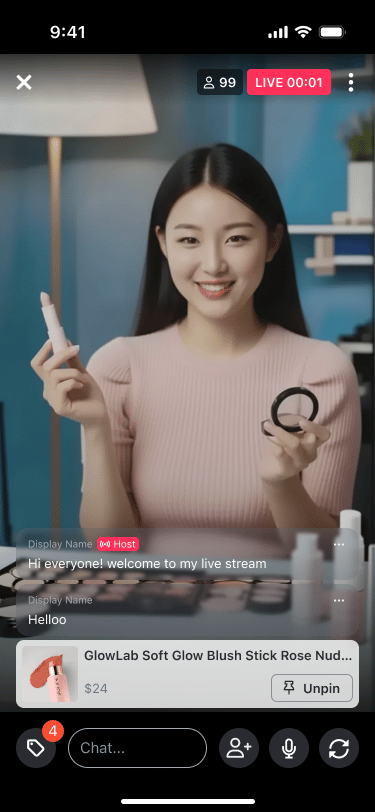
Product tagging in livestreams allows hosts and authorized co-hosts to showcase products to viewers during live broadcasts. Viewers can browse tagged products and open product links without leaving the stream.
 Product tagging requires the Product Catalog to be configured and enabled for
your network in the console. Available on iOS, Android, and Web only.
### Tagging Phases
Product tagging is available across all livestream phases, with different access levels at each stage:
| Phase | Who can tag | Who can pin |
| - | - | - |
| **Pre-live** (backstage) | Host only | Host only |
| **During livestream** | Host + co-host (if permission granted) | Host + co-host (if permission granted) |
| **Post-live** (host management) | Host only | — |
Viewers can browse and open tagged products during all phases, including replay.
### Product Pinning
A host or authorized co-host can pin one product at a time to display it as a prominent overlay card for all viewers.
* Only **one** product can be pinned at a time — pinning a new product automatically replaces the previous pin
* The pinned product always appears at the top of the product list
* If the pinned product is removed from the tag list, it is automatically unpinned
* When the livestream ends, the pin overlay is removed; the product list remains accessible to replay viewers
### Co-host Product Permissions
The host controls whether a co-host can manage products. This permission can be toggled from the backstage after the co-host accepts an invite, or from the co-host name menu during the stream.
* **Enabled**: Co-host can tag, remove, pin, and unpin products
* **Disabled**: Co-host cannot see or interact with any product management controls
* Permission changes apply immediately in real-time
### Viewer Experience
* The tag icon is only visible when at least one product is tagged
* A count badge on the tag icon updates in real-time as products are added or removed
* Tapping the tag icon opens a scrollable product list overlay
* Tapping a product opens its link in an in-app browser — the livestream continues playing behind the browser
### Customize the Product Tap
To route that tap somewhere else, override `onLivestreamProductTagClick` on `AmityGlobalBehavior`. The handler receives the tapped product on `context.product`.
```swift iOS theme={null}
class MyGlobalBehavior: AmityGlobalBehavior {
override func onLivestreamProductTagClick(context: AmityGlobalBehavior.Context) {
guard let product = context.product else { return }
MyNavigator.showProduct(id: product.productId)
}
}
AmityUIKit4Manager.behaviour.globalBehavior = MyGlobalBehavior()
```
```kotlin Android theme={null}
AmityUIKit4Manager.behavior.globalBehavior = object : AmityGlobalBehavior() {
override fun onLivestreamProductTagClick(context: AmityGlobalBehavior.Context): Boolean {
val product = context.product ?: return false
MyCommerceFlow.openProduct(product.getProductId())
// Return true to claim the tap, so the built-in product web view is skipped.
return true
}
}
```
```typescript Web theme={null}
{
router.push(`/products/${product.productId}`);
},
},
}}
>
```
**Returning `false` on Android is not the same as doing nothing.** It gives you UIKit's built-in product web view, which leaves the stream playing in a floating window over it. iOS and Web return no value, so an override always replaces the default. On iOS, call `super.onLivestreamProductTagClick(context:)` where you still want the in-app browser.
### Limits & Constraints
| Limit | Value |
| - | - |
| Max products per livestream | 20 |
| Simultaneous pinned products | 1 |
### Components Used in Livestreams
Product tagging in livestreams uses two shared UIKit components. See [Product Tagging Components](/uikit/components/social/product-tagging) for full parameter reference and code examples.
| Component | Used for |
| - | - |
| `ProductTagSelectionComponent` | Searching and selecting products to tag (via `livestream` mode) |
| `ManageProductTagListComponent` | Managing tagged products with pin/unpin and remove controls (host/co-host view); browsing products in read-only overlay (viewer and replay view) |
The `ProductTagSelectionComponent` in `livestream` mode has a higher product limit (up to 20 total) and a different header label ("Add products") compared to post mode. The `ManageProductTagListComponent` in `playback` render mode disables pin controls for the post-live replay experience.
## Pinned Messages
A host, co-host, or moderator can pin one chat message during a livestream so it stays visible above the live chat for every viewer, no matter how fast the feed scrolls. Use it for rules, a promo code, a link, or an announcement.
Product tagging requires the Product Catalog to be configured and enabled for
your network in the console. Available on iOS, Android, and Web only.
### Tagging Phases
Product tagging is available across all livestream phases, with different access levels at each stage:
| Phase | Who can tag | Who can pin |
| - | - | - |
| **Pre-live** (backstage) | Host only | Host only |
| **During livestream** | Host + co-host (if permission granted) | Host + co-host (if permission granted) |
| **Post-live** (host management) | Host only | — |
Viewers can browse and open tagged products during all phases, including replay.
### Product Pinning
A host or authorized co-host can pin one product at a time to display it as a prominent overlay card for all viewers.
* Only **one** product can be pinned at a time — pinning a new product automatically replaces the previous pin
* The pinned product always appears at the top of the product list
* If the pinned product is removed from the tag list, it is automatically unpinned
* When the livestream ends, the pin overlay is removed; the product list remains accessible to replay viewers
### Co-host Product Permissions
The host controls whether a co-host can manage products. This permission can be toggled from the backstage after the co-host accepts an invite, or from the co-host name menu during the stream.
* **Enabled**: Co-host can tag, remove, pin, and unpin products
* **Disabled**: Co-host cannot see or interact with any product management controls
* Permission changes apply immediately in real-time
### Viewer Experience
* The tag icon is only visible when at least one product is tagged
* A count badge on the tag icon updates in real-time as products are added or removed
* Tapping the tag icon opens a scrollable product list overlay
* Tapping a product opens its link in an in-app browser — the livestream continues playing behind the browser
### Customize the Product Tap
To route that tap somewhere else, override `onLivestreamProductTagClick` on `AmityGlobalBehavior`. The handler receives the tapped product on `context.product`.
```swift iOS theme={null}
class MyGlobalBehavior: AmityGlobalBehavior {
override func onLivestreamProductTagClick(context: AmityGlobalBehavior.Context) {
guard let product = context.product else { return }
MyNavigator.showProduct(id: product.productId)
}
}
AmityUIKit4Manager.behaviour.globalBehavior = MyGlobalBehavior()
```
```kotlin Android theme={null}
AmityUIKit4Manager.behavior.globalBehavior = object : AmityGlobalBehavior() {
override fun onLivestreamProductTagClick(context: AmityGlobalBehavior.Context): Boolean {
val product = context.product ?: return false
MyCommerceFlow.openProduct(product.getProductId())
// Return true to claim the tap, so the built-in product web view is skipped.
return true
}
}
```
```typescript Web theme={null}
{
router.push(`/products/${product.productId}`);
},
},
}}
>
```
**Returning `false` on Android is not the same as doing nothing.** It gives you UIKit's built-in product web view, which leaves the stream playing in a floating window over it. iOS and Web return no value, so an override always replaces the default. On iOS, call `super.onLivestreamProductTagClick(context:)` where you still want the in-app browser.
### Limits & Constraints
| Limit | Value |
| - | - |
| Max products per livestream | 20 |
| Simultaneous pinned products | 1 |
### Components Used in Livestreams
Product tagging in livestreams uses two shared UIKit components. See [Product Tagging Components](/uikit/components/social/product-tagging) for full parameter reference and code examples.
| Component | Used for |
| - | - |
| `ProductTagSelectionComponent` | Searching and selecting products to tag (via `livestream` mode) |
| `ManageProductTagListComponent` | Managing tagged products with pin/unpin and remove controls (host/co-host view); browsing products in read-only overlay (viewer and replay view) |
The `ProductTagSelectionComponent` in `livestream` mode has a higher product limit (up to 20 total) and a different header label ("Add products") compared to post mode. The `ManageProductTagListComponent` in `playback` render mode disables pin controls for the post-live replay experience.
## Pinned Messages
A host, co-host, or moderator can pin one chat message during a livestream so it stays visible above the live chat for every viewer, no matter how fast the feed scrolls. Use it for rules, a promo code, a link, or an announcement.
 ### Who Can Pin
| Role | Pin from the ⋮ menu | Unpin (banner "X" or the ⋮ menu) | Sees the banner |
| - | - | - | - |
| Host | ✅ | ✅ | ✅ |
| Co-host | ✅ | ✅ | ✅ |
| Moderator or any role with `PIN_MESSAGE` | ✅ | ✅ | ✅ |
| Viewer, including muted viewers | — | — | ✅ |
The UIKit shows the pin controls when the current user is the host or a co-host, or holds `PIN_MESSAGE` in the live chat channel, and the room is live. The server enforces the permission on every request. When a user's permission changes mid-stream, the pin controls appear or disappear on their own — no user action, no error message: a **channel-level** role change (moderator or co-host) arrives over the `channel.roleAdded` / `channel.roleRemoved` realtime events, and a **network-level** change made from the Console arrives over the `user.updated` event (the UIKit subscribes to the current user's events while the livestream chat is open). The pinned message banner itself is unaffected (it is server-owned and stays visible to everyone). A stale pin or unpin that still slips through returns `403`, and the UIKit refreshes permissions then as a backstop.
### Pinning Behavior
* **Pin from the message menu.** "Pin message" appears at the top of a message's ⋮ menu, above "Report message" and "Delete message". It is hidden on deleted messages and on messages that failed to send. There is no confirmation dialog.
* **One pin at a time.** Pinning another message replaces the current pin in one step. The previous message loses its banner and stays in the feed.
* **The original message never moves.** Pinning only adds the banner. No pin indicator is drawn on the message inside the feed, and the feed is not reordered.
* **Unpin.** The "X" on the banner unpins, and is shown only to users who can pin. The ⋮ menu of the pinned message also offers **Unpin message** in place of **Pin message**, so there are two ways to unpin.
* **Live only.** The banner and the pin controls exist only while the room status is live. When the stream is idle, ended, or in recorded playback, the banner is not rendered even if the channel still has a pinned message.
* **Automatic unpin.** When the pinned message is deleted, or its author is banned from the channel or globally banned, the server clears the pin. The banner disappears for everyone and the message shows the "This message was deleted." placeholder in the feed. A community ban does not affect the pin.
* **Muted authors.** A muted user's message can be pinned and unpinned. The banner shows the muted indicator next to the author with the same visibility rules as message bubbles.
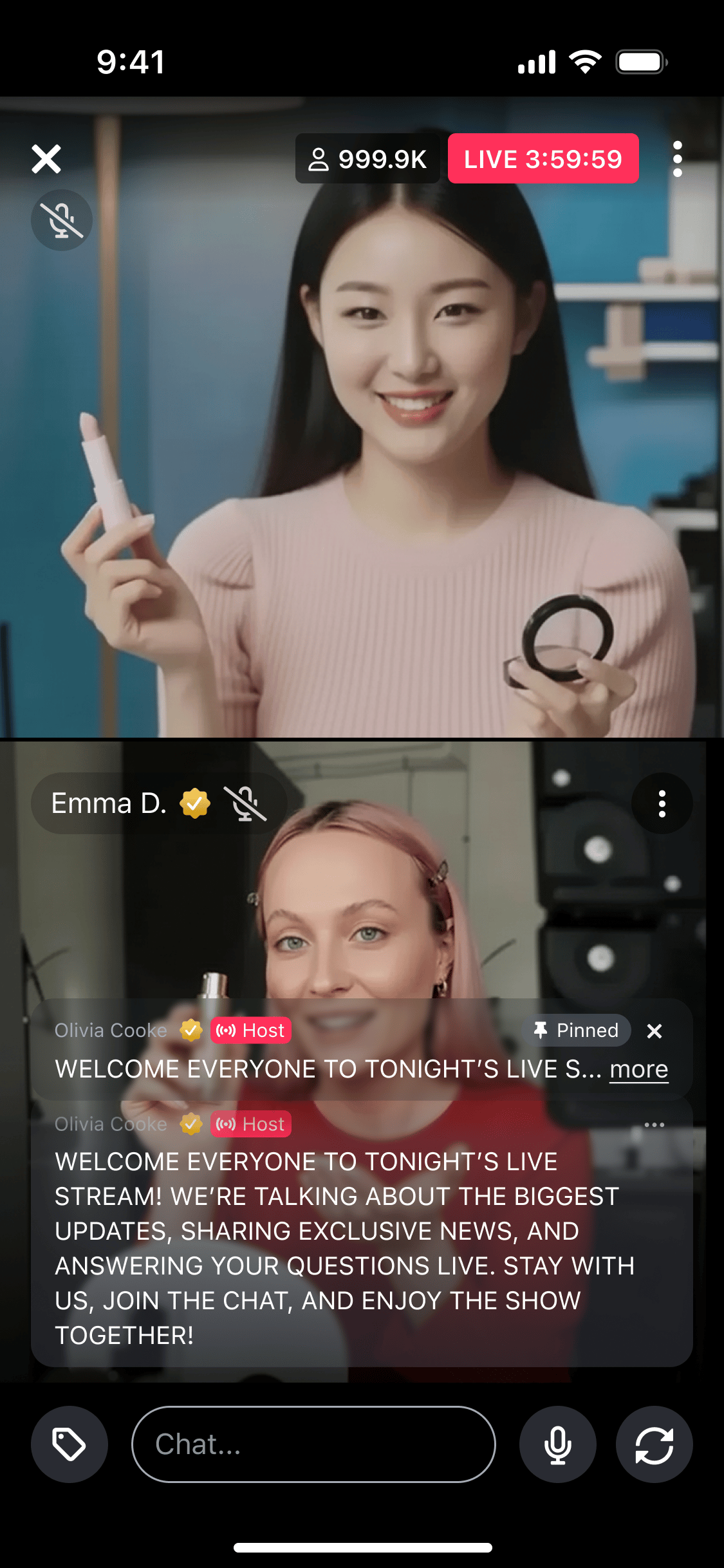
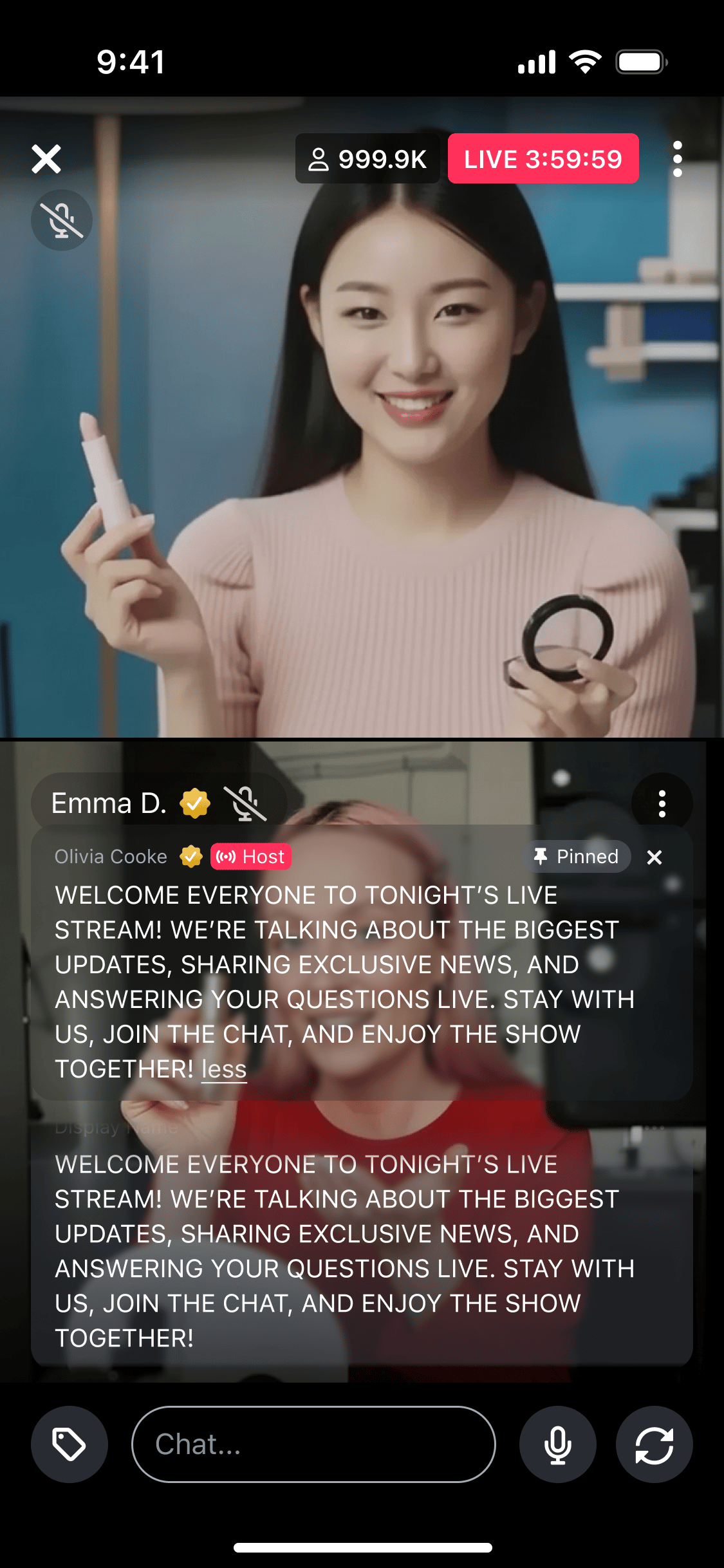
### Pinned Message Banner
The banner renders at the top of the chat column, above the feed and above the pinned product card. Messages scroll behind it.
| Part | Description |
| - | - |
| Byline | Author display name with the brand, host, co-host, or moderator badge, and the muted indicator when the author is muted |
| "Pinned" pill | Thumbtack icon with the "Pinned" label, right-aligned |
| Text | Every new pin renders collapsed to one line with an ellipsis and a trailing "more" indicator. Text that fits on one line shows no indicator. |
| "X" | Unpin control, shown only to users who can pin |
**Tap the bubble to expand or collapse.** The whole bubble is the tap target. "more" and "less" are passive labels, not buttons. Tapping anywhere on a collapsed banner expands it to the full text with a trailing "less" indicator. Tapping again collapses it. A replacing pin always starts collapsed. On mobile the chat column grows upward as the banner expands, and taps on the banner do not toggle the video controls.
### Customization Options
The pin controls and the banner use the `livestream_chat_feed` component ID. Existing `livestream_chat` keys for the compose bar and theme keep working.
All platforms build a config key as `pageId/componentId/elementId`, and `livestream_chat_feed` is the **component** ID — so it goes in the **middle** slot: `*/livestream_chat_feed/`.
| Config ID | Type | Description |
| - | - | - |
| `*/livestream_chat_feed/pinned_message_banner` | Element | Customize or exclude the pinned message banner. **All platforms.** |
| `*/livestream_chat_feed/pin_message_button` | Element | Customize or exclude the "Pin message" item in the message ⋮ menu. **Web and Android only** — iOS does not register this element (the pin control is not customizable there). |
| `*/livestream_chat_feed/unpin_message_button` | Element | Customize or exclude the unpin control: the "X" on the banner and, on Android and Web, the ⋮ menu's "Unpin message" item. **Web and Android only** — not registered on iOS. |
### Code Examples
The pin action and the banner are built into the livestream chat, so the pages you already use render them. The viewer sees them on the livestream player page and the streamer sees them on the broadcast view. There is nothing to mount separately. Use the config keys above to relabel or exclude the controls.
```tsx React theme={null}
import React from 'react';
import { AmityUiKitProvider, AmityLiveStreamPlayerPage } from '@amityco/ui-kit';
// Pin controls appear automatically for hosts, co-hosts, and PIN_MESSAGE holders.
const config = {
// Hide a control entirely by excluding its element key.
excludes: [],
customizations: {
'*/livestream_chat_feed/pin_message_button': { text: 'Pin message' },
'*/livestream_chat_feed/unpin_message_button': { text: 'Unpin message' },
'*/livestream_chat_feed/pinned_message_banner': {},
},
};
const LivestreamViewer = ({ post }) => (
);
export default LivestreamViewer;
```
```json iOS config.json theme={null}
{
"excludes": [],
"customizations": {
// iOS registers only the banner element (`pinned_message_banner`).
// There are no `pin_message_button` / `unpin_message_button` element IDs on iOS,
// so the ⋮-menu pin/unpin items cannot be customized or excluded there.
"*/livestream_chat_feed/pinned_message_banner": {}
}
}
```
```swift iOS theme={null}
// The pinned message banner renders inside the livestream player page
// and the broadcast view. No extra wiring is needed.
let livestreamPlayer = AmityLivestreamPlayerPage(post: post)
let viewController = AmitySwiftUIHostingController(rootView: livestreamPlayer)
navigationController?.pushViewController(viewController, animated: true)
```
```json Android config.json theme={null}
{
"excludes": [],
"customizations": {
"*/livestream_chat_feed/pin_message_button": { "text": "Pin message" },
"*/livestream_chat_feed/pinned_message_banner": {},
"*/livestream_chat_feed/unpin_message_button": {}
}
}
```
```kotlin Android theme={null}
// The pinned message banner renders inside the livestream player page
// and the broadcast view. No extra wiring is needed.
@Composable
fun composeLivestreamPlayerPage(post: AmityPost) {
AmityLivestreamPlayerPage(
post = post,
)
}
```
All platforms write the component ID in the **middle** slot of a config key (`*/livestream_chat_feed/`). To remove a control, add its key to `excludes`. Excluding `unpin_message_button` keeps the banner visible but removes the "X" for everyone; on Android and Web it also removes the ⋮ menu's "Unpin message" item, because both controls share that key. On **iOS**, only `pinned_message_banner` is registered — the pin and unpin menu items have no element IDs there, so they cannot be relabeled or excluded.
### Error Handling
Pin and unpin failures are silent by design. No toast or dialog is shown. The ⋮ menu closes, the pin state is unchanged, and the banner keeps following the channel.
| Scenario | What the viewer sees |
| - | - |
| Network failure on pin or unpin | Nothing pin-specific. The existing "No internet connection." indicator applies when the device is offline. |
| Pin a message that was deleted concurrently | No pin is applied. The message row becomes the "This message was deleted." placeholder. |
| Pin or unpin after the user's role was revoked | Nothing. The pin controls are hidden from the next menu open onward. |
| Unpin a message that is no longer the current pin | Nothing. The banner already shows the newer pin. |
### Limits
| Limit | Value |
| - | - |
| Pinned messages per channel | 1 |
| Supported message type | Text |
| Channel type | `live` channels only |
## Playback Controls
Playback Controls standardize the tap and pause behavior of the video player across the UIKit — for both video posts and livestreams. On mobile, tapping the player reveals a controls overlay (instead of toggling playback), pausing a live stream is a real state with a visible pause indicator, and recorded content offers ±10s skip.
Playback Controls apply to the livestream viewer and the shared video player
used by video posts, media gallery, community video feeds, and recorded
livestream playback. Live streams do not show skip controls.
### Tap-to-Reveal Controls (Mobile)
On mobile clients, tapping the player surface reveals a controls overlay — it no longer toggles pause/play directly. Only the central pause/play button changes playback state.
| Behavior | Detail |
| - | - |
| Tap surface while playing | Reveals the controls overlay; playback continues |
| Auto-dismiss while playing | Overlay hides after \~1 second of inactivity |
| Tap central pause/play button | Toggles playback (the only affordance for pause/play on mobile) |
| Tap outside while paused | Dismisses the overlay; the video stays paused. Tap the surface again to re-reveal the central play button |
| Auto-dismiss while paused | Disabled — the overlay only dismisses on an explicit tap-outside |
**Desktop web player:** One-step click-to-toggle is retained. Clicking the
video pauses or resumes it directly; the central play icon persists while
paused, the central pause icon appears briefly when resuming. Hover-to-reveal,
mute, and fullscreen behavior are unchanged.
### Pause a Live Stream
Viewers can pause a live stream locally. The broadcast continues on the sender's side; only the viewer's playback is frozen. On mobile, pause/resume goes through the central button in the tap-to-reveal overlay. On desktop, a single click on the video surface toggles play/pause directly.
| Behavior | Detail |
| - | - |
| How to pause / resume | **Mobile:** tap the surface to reveal the overlay, then tap the central pause/play button. **Desktop:** single-click anywhere on the video surface to toggle play/pause |
| Pause indicator | The central `play` icon shown while paused communicates the paused state — no separate badge is added |
| Resume behavior | On resume, playback **jumps to the current live edge** — the viewer catches up to live rather than replaying from the paused position |
| Chat during pause | Chat continues to receive and render new messages in real time; **no messages are missed or replayed** on resume |
| `LIVE` badge | Not repurposed — the badge continues to reflect broadcast status, not viewer playback state |
| Stream ends while paused | If the room transitions to `ended` or `recorded` while the viewer is paused, that state **takes priority** — the pause indicator dismisses and the player moves to the ended or recorded state |
**Live edge resolution:** On resume, the player seeks to the HLS live-sync
position when available, or to the end of the seekable range otherwise. No
paused offset is tracked or restored.
### 10-Second Skip (Video Posts & Recorded Livestreams)
Viewers can jump backward or forward 10 seconds while watching a video post or a recorded livestream. On mobile, skip buttons appear in the controls overlay next to the central pause/play button. On desktop, they sit in the existing web-player control bar.
| Behavior | Detail |
| - | - |
| Availability | Video posts and recorded livestreams (VOD-of-live), on **mobile and desktop**. **Hidden on live streams.** |
| −10s at start | Seeking below `0:00` clamps to `0:00`; the current play state is preserved (playing stays playing, paused stays paused) |
| +10s near end | Clamps to the final frame **and pauses (end state)** — it does not loop or error |
| Rapid repeated taps | Each tap adds or subtracts 10 seconds to the target position (e.g. three quick `+10s` taps at `1:00` seek to `1:30`). The icon always shows `+10` / `−10` — it does not accumulate on-screen |
| Boundary during rapid taps | Boundary clamps apply mid-burst — back clamps to `0:00` (keeps the current play state), forward clamps to the final frame (pauses) |
| Desktop | The existing skip controls now use `−10s` / `+10s` (previously 15s). No other desktop behavior changes |
### Flow — Pause and Resume to Live (Mobile)
```mermaid theme={null}
flowchart TD
A[Live stream playing at live edge] --> B[User taps player surface]
B --> C[Controls overlay revealed]
C --> D[User taps central pause button]
D --> E[Playback pauses; central icon flips to play]
E --> F{User action}
F -->|Tap outside| G[Overlay dismisses; video stays paused]
G --> H[User taps surface again → play button re-revealed]
F -->|Tap play button| I[Player seeks to live edge]
I --> J[Playback resumes live; overlay auto-dismisses in 1s]
E --> K{Room ends or transitions to recorded?}
K -->|Yes| L[Pause indicator dismissed; player switches to ended/recorded state]
```
### Platform Support
| Feature | iOS | Android | Web (mobile) | Web (desktop) | Flutter | React Native |
| - | - | - | - | - | - | - |
| Tap-to-reveal controls overlay | ✅ | ✅ | ✅ | — | 🚧 | 🚧 |
| 1s auto-dismiss while playing | ✅ | ✅ | ✅ | — | 🚧 | 🚧 |
| Pause live stream + resume-to-live | ✅ | ✅ | ✅ | ✅ | 🚧 | 🚧 |
| Chat continues during pause | ✅ | ✅ | ✅ | ✅ | 🚧 | 🚧 |
| Ended-while-paused hand-off | ✅ | ✅ | ✅ | ✅ | 🚧 | 🚧 |
| ±10s skip (video posts + recorded livestreams) | ✅ | ✅ | ✅ | ✅ | 🚧 | 🚧 |
| ±10s skip hidden on live | ✅ | ✅ | ✅ | ✅ | 🚧 | 🚧 |
**Legend:** ✅ Supported | 🚧 Planned | — Not applicable
On desktop web, playback controls are a **UI refresh only** — icons are
updated and the skip amount changes from 15s to 10s. Click-to-toggle,
hover-to-reveal, mute, and fullscreen behavior are unchanged.
## Picture-in-Picture
Picture-in-Picture (PiP) keeps a livestream playing in a small floating window when the viewer leaves the player — by backgrounding the app or navigating to another page, such as opening a tagged product. Both live streams and recorded livestreams can float, and playback continues uninterrupted as the viewer moves away and back.
PiP uses each platform's **native system Picture-in-Picture window**, so its size, position, styling, and gestures come from the operating system. **iOS and Android only** — no configuration is required to turn it on. Broadcasters (host, co-host, and backstage) are excluded so they stay in the app to keep streaming.
### Window controls
Controls inside the floating window are drawn by the operating system. Android and iOS behave slightly differently:
| Control | Android | iOS |
| - | - | - |
| Play / pause | ✅ (recorded & live) | ✅ recorded — on live, shown but inactive |
| Skip ±10s | ✅ recorded only | ✅ recorded — on live, shown but disabled |
| Expand / close | ✅ | ✅ |
On a live stream there is nothing to seek or hold past the live edge, so the skip and pause controls have no effect there. Mute is not available in the window on either platform — the device volume controls serve that purpose.
### Returning to the full player
* Expanding the window returns to the full player with playback continuing — the stream is not restarted, and a recording keeps its position.
* Live streams resume at the **live edge** rather than replaying the buffered part.
* Chat reloads at the latest messages on return.
* If the stream ends or is removed while floating, playback stops in the window and the reason (ended, terminated, or restricted) is shown when the viewer expands it.
* Closing the window stops playback.
### Setup
| Platform | Required setup |
| - | - |
| **Android** | None. UIKit declares Picture-in-Picture support in its own manifest, which merges into your app automatically. |
| **iOS** | Enable the **Background Modes** capability with *Audio, AirPlay, and Picture in Picture*. Without it, PiP never starts. |
**Minimum OS:** Android 12 (API 31) or iOS 14.2 for full support. Below that, playback stops when the viewer leaves the player, as it did before PiP.
Viewers can turn Picture-in-Picture off in their device settings. When it is off, leaving the player simply stops playback with no error. The two platforms differ: the **Android** setting blocks every trigger including in-app navigation, while the **iOS** setting only blocks automatic entry on backgrounding. Neither platform exposes this setting to the app, so it cannot be detected in advance.
### Platform Support
| Feature | iOS | Android | Web | Flutter | React Native |
| - | - | - | - | - | - |
| Float on backgrounding | ✅ | ✅ | — | 🚧 | 🚧 |
| Float on in-app navigation | ✅ | ✅ | — | 🚧 | 🚧 |
| Live and recorded playback | ✅ | ✅ | — | 🚧 | 🚧 |
| Expand back to the full player | ✅ | ✅ | — | 🚧 | 🚧 |
| Broadcasters excluded | ✅ | ✅ | — | 🚧 | 🚧 |
**Legend:** ✅ Supported | 🚧 Planned | — Not applicable
The floating window cannot be branded or restyled — it is rendered by the operating system, so its colors, placement, and gestures are outside UIKit's control.
## Related Components
**Post Components** Post creation and media management for livestream posts
**Feed Components** Livestream post display and interaction in social feeds
**Community Features** Community-based livestream broadcasting and management
**User Management** User profile integration with livestream content
**Interaction Components** Real-time engagement during live streams
**Moderation Tools** Livestream content moderation and safety controls
**Commerce Integration** Shared UIKit components for product tagging and management
This documentation is built and hosted on [Mintlify](https://mintlify.com), a developer documentation platform.
### Who Can Pin
| Role | Pin from the ⋮ menu | Unpin (banner "X" or the ⋮ menu) | Sees the banner |
| - | - | - | - |
| Host | ✅ | ✅ | ✅ |
| Co-host | ✅ | ✅ | ✅ |
| Moderator or any role with `PIN_MESSAGE` | ✅ | ✅ | ✅ |
| Viewer, including muted viewers | — | — | ✅ |
The UIKit shows the pin controls when the current user is the host or a co-host, or holds `PIN_MESSAGE` in the live chat channel, and the room is live. The server enforces the permission on every request. When a user's permission changes mid-stream, the pin controls appear or disappear on their own — no user action, no error message: a **channel-level** role change (moderator or co-host) arrives over the `channel.roleAdded` / `channel.roleRemoved` realtime events, and a **network-level** change made from the Console arrives over the `user.updated` event (the UIKit subscribes to the current user's events while the livestream chat is open). The pinned message banner itself is unaffected (it is server-owned and stays visible to everyone). A stale pin or unpin that still slips through returns `403`, and the UIKit refreshes permissions then as a backstop.
### Pinning Behavior
* **Pin from the message menu.** "Pin message" appears at the top of a message's ⋮ menu, above "Report message" and "Delete message". It is hidden on deleted messages and on messages that failed to send. There is no confirmation dialog.
* **One pin at a time.** Pinning another message replaces the current pin in one step. The previous message loses its banner and stays in the feed.
* **The original message never moves.** Pinning only adds the banner. No pin indicator is drawn on the message inside the feed, and the feed is not reordered.
* **Unpin.** The "X" on the banner unpins, and is shown only to users who can pin. The ⋮ menu of the pinned message also offers **Unpin message** in place of **Pin message**, so there are two ways to unpin.
* **Live only.** The banner and the pin controls exist only while the room status is live. When the stream is idle, ended, or in recorded playback, the banner is not rendered even if the channel still has a pinned message.
* **Automatic unpin.** When the pinned message is deleted, or its author is banned from the channel or globally banned, the server clears the pin. The banner disappears for everyone and the message shows the "This message was deleted." placeholder in the feed. A community ban does not affect the pin.
* **Muted authors.** A muted user's message can be pinned and unpinned. The banner shows the muted indicator next to the author with the same visibility rules as message bubbles.
### Pinned Message Banner
The banner renders at the top of the chat column, above the feed and above the pinned product card. Messages scroll behind it.
| Part | Description |
| - | - |
| Byline | Author display name with the brand, host, co-host, or moderator badge, and the muted indicator when the author is muted |
| "Pinned" pill | Thumbtack icon with the "Pinned" label, right-aligned |
| Text | Every new pin renders collapsed to one line with an ellipsis and a trailing "more" indicator. Text that fits on one line shows no indicator. |
| "X" | Unpin control, shown only to users who can pin |
**Tap the bubble to expand or collapse.** The whole bubble is the tap target. "more" and "less" are passive labels, not buttons. Tapping anywhere on a collapsed banner expands it to the full text with a trailing "less" indicator. Tapping again collapses it. A replacing pin always starts collapsed. On mobile the chat column grows upward as the banner expands, and taps on the banner do not toggle the video controls.
### Customization Options
The pin controls and the banner use the `livestream_chat_feed` component ID. Existing `livestream_chat` keys for the compose bar and theme keep working.
All platforms build a config key as `pageId/componentId/elementId`, and `livestream_chat_feed` is the **component** ID — so it goes in the **middle** slot: `*/livestream_chat_feed/`.
| Config ID | Type | Description |
| - | - | - |
| `*/livestream_chat_feed/pinned_message_banner` | Element | Customize or exclude the pinned message banner. **All platforms.** |
| `*/livestream_chat_feed/pin_message_button` | Element | Customize or exclude the "Pin message" item in the message ⋮ menu. **Web and Android only** — iOS does not register this element (the pin control is not customizable there). |
| `*/livestream_chat_feed/unpin_message_button` | Element | Customize or exclude the unpin control: the "X" on the banner and, on Android and Web, the ⋮ menu's "Unpin message" item. **Web and Android only** — not registered on iOS. |
### Code Examples
The pin action and the banner are built into the livestream chat, so the pages you already use render them. The viewer sees them on the livestream player page and the streamer sees them on the broadcast view. There is nothing to mount separately. Use the config keys above to relabel or exclude the controls.
```tsx React theme={null}
import React from 'react';
import { AmityUiKitProvider, AmityLiveStreamPlayerPage } from '@amityco/ui-kit';
// Pin controls appear automatically for hosts, co-hosts, and PIN_MESSAGE holders.
const config = {
// Hide a control entirely by excluding its element key.
excludes: [],
customizations: {
'*/livestream_chat_feed/pin_message_button': { text: 'Pin message' },
'*/livestream_chat_feed/unpin_message_button': { text: 'Unpin message' },
'*/livestream_chat_feed/pinned_message_banner': {},
},
};
const LivestreamViewer = ({ post }) => (
);
export default LivestreamViewer;
```
```json iOS config.json theme={null}
{
"excludes": [],
"customizations": {
// iOS registers only the banner element (`pinned_message_banner`).
// There are no `pin_message_button` / `unpin_message_button` element IDs on iOS,
// so the ⋮-menu pin/unpin items cannot be customized or excluded there.
"*/livestream_chat_feed/pinned_message_banner": {}
}
}
```
```swift iOS theme={null}
// The pinned message banner renders inside the livestream player page
// and the broadcast view. No extra wiring is needed.
let livestreamPlayer = AmityLivestreamPlayerPage(post: post)
let viewController = AmitySwiftUIHostingController(rootView: livestreamPlayer)
navigationController?.pushViewController(viewController, animated: true)
```
```json Android config.json theme={null}
{
"excludes": [],
"customizations": {
"*/livestream_chat_feed/pin_message_button": { "text": "Pin message" },
"*/livestream_chat_feed/pinned_message_banner": {},
"*/livestream_chat_feed/unpin_message_button": {}
}
}
```
```kotlin Android theme={null}
// The pinned message banner renders inside the livestream player page
// and the broadcast view. No extra wiring is needed.
@Composable
fun composeLivestreamPlayerPage(post: AmityPost) {
AmityLivestreamPlayerPage(
post = post,
)
}
```
All platforms write the component ID in the **middle** slot of a config key (`*/livestream_chat_feed/`). To remove a control, add its key to `excludes`. Excluding `unpin_message_button` keeps the banner visible but removes the "X" for everyone; on Android and Web it also removes the ⋮ menu's "Unpin message" item, because both controls share that key. On **iOS**, only `pinned_message_banner` is registered — the pin and unpin menu items have no element IDs there, so they cannot be relabeled or excluded.
### Error Handling
Pin and unpin failures are silent by design. No toast or dialog is shown. The ⋮ menu closes, the pin state is unchanged, and the banner keeps following the channel.
| Scenario | What the viewer sees |
| - | - |
| Network failure on pin or unpin | Nothing pin-specific. The existing "No internet connection." indicator applies when the device is offline. |
| Pin a message that was deleted concurrently | No pin is applied. The message row becomes the "This message was deleted." placeholder. |
| Pin or unpin after the user's role was revoked | Nothing. The pin controls are hidden from the next menu open onward. |
| Unpin a message that is no longer the current pin | Nothing. The banner already shows the newer pin. |
### Limits
| Limit | Value |
| - | - |
| Pinned messages per channel | 1 |
| Supported message type | Text |
| Channel type | `live` channels only |
## Playback Controls
Playback Controls standardize the tap and pause behavior of the video player across the UIKit — for both video posts and livestreams. On mobile, tapping the player reveals a controls overlay (instead of toggling playback), pausing a live stream is a real state with a visible pause indicator, and recorded content offers ±10s skip.
Playback Controls apply to the livestream viewer and the shared video player
used by video posts, media gallery, community video feeds, and recorded
livestream playback. Live streams do not show skip controls.
### Tap-to-Reveal Controls (Mobile)
On mobile clients, tapping the player surface reveals a controls overlay — it no longer toggles pause/play directly. Only the central pause/play button changes playback state.
| Behavior | Detail |
| - | - |
| Tap surface while playing | Reveals the controls overlay; playback continues |
| Auto-dismiss while playing | Overlay hides after \~1 second of inactivity |
| Tap central pause/play button | Toggles playback (the only affordance for pause/play on mobile) |
| Tap outside while paused | Dismisses the overlay; the video stays paused. Tap the surface again to re-reveal the central play button |
| Auto-dismiss while paused | Disabled — the overlay only dismisses on an explicit tap-outside |
**Desktop web player:** One-step click-to-toggle is retained. Clicking the
video pauses or resumes it directly; the central play icon persists while
paused, the central pause icon appears briefly when resuming. Hover-to-reveal,
mute, and fullscreen behavior are unchanged.
### Pause a Live Stream
Viewers can pause a live stream locally. The broadcast continues on the sender's side; only the viewer's playback is frozen. On mobile, pause/resume goes through the central button in the tap-to-reveal overlay. On desktop, a single click on the video surface toggles play/pause directly.
| Behavior | Detail |
| - | - |
| How to pause / resume | **Mobile:** tap the surface to reveal the overlay, then tap the central pause/play button. **Desktop:** single-click anywhere on the video surface to toggle play/pause |
| Pause indicator | The central `play` icon shown while paused communicates the paused state — no separate badge is added |
| Resume behavior | On resume, playback **jumps to the current live edge** — the viewer catches up to live rather than replaying from the paused position |
| Chat during pause | Chat continues to receive and render new messages in real time; **no messages are missed or replayed** on resume |
| `LIVE` badge | Not repurposed — the badge continues to reflect broadcast status, not viewer playback state |
| Stream ends while paused | If the room transitions to `ended` or `recorded` while the viewer is paused, that state **takes priority** — the pause indicator dismisses and the player moves to the ended or recorded state |
**Live edge resolution:** On resume, the player seeks to the HLS live-sync
position when available, or to the end of the seekable range otherwise. No
paused offset is tracked or restored.
### 10-Second Skip (Video Posts & Recorded Livestreams)
Viewers can jump backward or forward 10 seconds while watching a video post or a recorded livestream. On mobile, skip buttons appear in the controls overlay next to the central pause/play button. On desktop, they sit in the existing web-player control bar.
| Behavior | Detail |
| - | - |
| Availability | Video posts and recorded livestreams (VOD-of-live), on **mobile and desktop**. **Hidden on live streams.** |
| −10s at start | Seeking below `0:00` clamps to `0:00`; the current play state is preserved (playing stays playing, paused stays paused) |
| +10s near end | Clamps to the final frame **and pauses (end state)** — it does not loop or error |
| Rapid repeated taps | Each tap adds or subtracts 10 seconds to the target position (e.g. three quick `+10s` taps at `1:00` seek to `1:30`). The icon always shows `+10` / `−10` — it does not accumulate on-screen |
| Boundary during rapid taps | Boundary clamps apply mid-burst — back clamps to `0:00` (keeps the current play state), forward clamps to the final frame (pauses) |
| Desktop | The existing skip controls now use `−10s` / `+10s` (previously 15s). No other desktop behavior changes |
### Flow — Pause and Resume to Live (Mobile)
```mermaid theme={null}
flowchart TD
A[Live stream playing at live edge] --> B[User taps player surface]
B --> C[Controls overlay revealed]
C --> D[User taps central pause button]
D --> E[Playback pauses; central icon flips to play]
E --> F{User action}
F -->|Tap outside| G[Overlay dismisses; video stays paused]
G --> H[User taps surface again → play button re-revealed]
F -->|Tap play button| I[Player seeks to live edge]
I --> J[Playback resumes live; overlay auto-dismisses in 1s]
E --> K{Room ends or transitions to recorded?}
K -->|Yes| L[Pause indicator dismissed; player switches to ended/recorded state]
```
### Platform Support
| Feature | iOS | Android | Web (mobile) | Web (desktop) | Flutter | React Native |
| - | - | - | - | - | - | - |
| Tap-to-reveal controls overlay | ✅ | ✅ | ✅ | — | 🚧 | 🚧 |
| 1s auto-dismiss while playing | ✅ | ✅ | ✅ | — | 🚧 | 🚧 |
| Pause live stream + resume-to-live | ✅ | ✅ | ✅ | ✅ | 🚧 | 🚧 |
| Chat continues during pause | ✅ | ✅ | ✅ | ✅ | 🚧 | 🚧 |
| Ended-while-paused hand-off | ✅ | ✅ | ✅ | ✅ | 🚧 | 🚧 |
| ±10s skip (video posts + recorded livestreams) | ✅ | ✅ | ✅ | ✅ | 🚧 | 🚧 |
| ±10s skip hidden on live | ✅ | ✅ | ✅ | ✅ | 🚧 | 🚧 |
**Legend:** ✅ Supported | 🚧 Planned | — Not applicable
On desktop web, playback controls are a **UI refresh only** — icons are
updated and the skip amount changes from 15s to 10s. Click-to-toggle,
hover-to-reveal, mute, and fullscreen behavior are unchanged.
## Picture-in-Picture
Picture-in-Picture (PiP) keeps a livestream playing in a small floating window when the viewer leaves the player — by backgrounding the app or navigating to another page, such as opening a tagged product. Both live streams and recorded livestreams can float, and playback continues uninterrupted as the viewer moves away and back.
PiP uses each platform's **native system Picture-in-Picture window**, so its size, position, styling, and gestures come from the operating system. **iOS and Android only** — no configuration is required to turn it on. Broadcasters (host, co-host, and backstage) are excluded so they stay in the app to keep streaming.
### Window controls
Controls inside the floating window are drawn by the operating system. Android and iOS behave slightly differently:
| Control | Android | iOS |
| - | - | - |
| Play / pause | ✅ (recorded & live) | ✅ recorded — on live, shown but inactive |
| Skip ±10s | ✅ recorded only | ✅ recorded — on live, shown but disabled |
| Expand / close | ✅ | ✅ |
On a live stream there is nothing to seek or hold past the live edge, so the skip and pause controls have no effect there. Mute is not available in the window on either platform — the device volume controls serve that purpose.
### Returning to the full player
* Expanding the window returns to the full player with playback continuing — the stream is not restarted, and a recording keeps its position.
* Live streams resume at the **live edge** rather than replaying the buffered part.
* Chat reloads at the latest messages on return.
* If the stream ends or is removed while floating, playback stops in the window and the reason (ended, terminated, or restricted) is shown when the viewer expands it.
* Closing the window stops playback.
### Setup
| Platform | Required setup |
| - | - |
| **Android** | None. UIKit declares Picture-in-Picture support in its own manifest, which merges into your app automatically. |
| **iOS** | Enable the **Background Modes** capability with *Audio, AirPlay, and Picture in Picture*. Without it, PiP never starts. |
**Minimum OS:** Android 12 (API 31) or iOS 14.2 for full support. Below that, playback stops when the viewer leaves the player, as it did before PiP.
Viewers can turn Picture-in-Picture off in their device settings. When it is off, leaving the player simply stops playback with no error. The two platforms differ: the **Android** setting blocks every trigger including in-app navigation, while the **iOS** setting only blocks automatic entry on backgrounding. Neither platform exposes this setting to the app, so it cannot be detected in advance.
### Platform Support
| Feature | iOS | Android | Web | Flutter | React Native |
| - | - | - | - | - | - |
| Float on backgrounding | ✅ | ✅ | — | 🚧 | 🚧 |
| Float on in-app navigation | ✅ | ✅ | — | 🚧 | 🚧 |
| Live and recorded playback | ✅ | ✅ | — | 🚧 | 🚧 |
| Expand back to the full player | ✅ | ✅ | — | 🚧 | 🚧 |
| Broadcasters excluded | ✅ | ✅ | — | 🚧 | 🚧 |
**Legend:** ✅ Supported | 🚧 Planned | — Not applicable
The floating window cannot be branded or restyled — it is rendered by the operating system, so its colors, placement, and gestures are outside UIKit's control.
## Related Components
**Post Components** Post creation and media management for livestream posts
**Feed Components** Livestream post display and interaction in social feeds
**Community Features** Community-based livestream broadcasting and management
**User Management** User profile integration with livestream content
**Interaction Components** Real-time engagement during live streams
**Moderation Tools** Livestream content moderation and safety controls
**Commerce Integration** Shared UIKit components for product tagging and management
This documentation is built and hosted on [Mintlify](https://mintlify.com), a developer documentation platform.